
Overview#
User Experience Sync (UES) is a cloud-native feature for Windows 365 Flex Cloud PCs in Shared mode and Windows 365 Cloud Apps designed to deliver a seamless and consistent experience for users across sessions. UES allows users to preserve their Windows personalization, user settings (including accessibility), application settings, and application data across non-persistent sessions, giving them a consistent user experience. The best part about UES is that there is no need to rely on other profile management tools, and there is no additional cost. Everything is Microsoft-managed.
At a high level, UES is dedicated, cloud-hosted storage in the Microsoft Cloud that follows the user and is auto-attached in the background upon user sign-in. The user’s profile (C:\users\%username%) is silently redirected to the UES disk without the user ever knowing.
But how does this all actually work? How is the user’s profile redirected? And what if I use a custom Windows image instead of a gallery image; does it still work the same way? If you’ve ever had any of these questions, or just wanted to know more about the magic happening behind the scenes, then let’s dive in.
The Names You’ll See#
| Name | Where you’ll see it | What it actually is |
|---|---|---|
| User Experience Sync (UES) | Microsoft Learn docs, Intune admin center, marketing/blog posts | The public, product-facing name for the feature |
| Cloud Profile Agent | C:\Program Files\Microsoft Cloud Profile Agent\, services.msc (the cldprof service) | The installed product name on the Cloud PC |
| CloudProfile | C:\Program Files\Microsoft CloudDeviceAgent\CloudProfile\<version>\, process command lines (e.g. CloudDeviceAgent.CloudProfile.exe) | The CloudProfile plugin loaded by the Cloud Device Agent |
| Microsoft.CloudProfiles | .NET stack traces from cldprof.exe | The internal engineering namespace |
| frxdrvvt.sys | fltmc filters, file at C:\Program Files\Microsoft Cloud Profile Agent\frxdrvvt.sys | The retained FSLogix Redirection Filter Driver that makes C:\Users\%username% point at the attached disk |
What’s Doing the Silent Redirection#
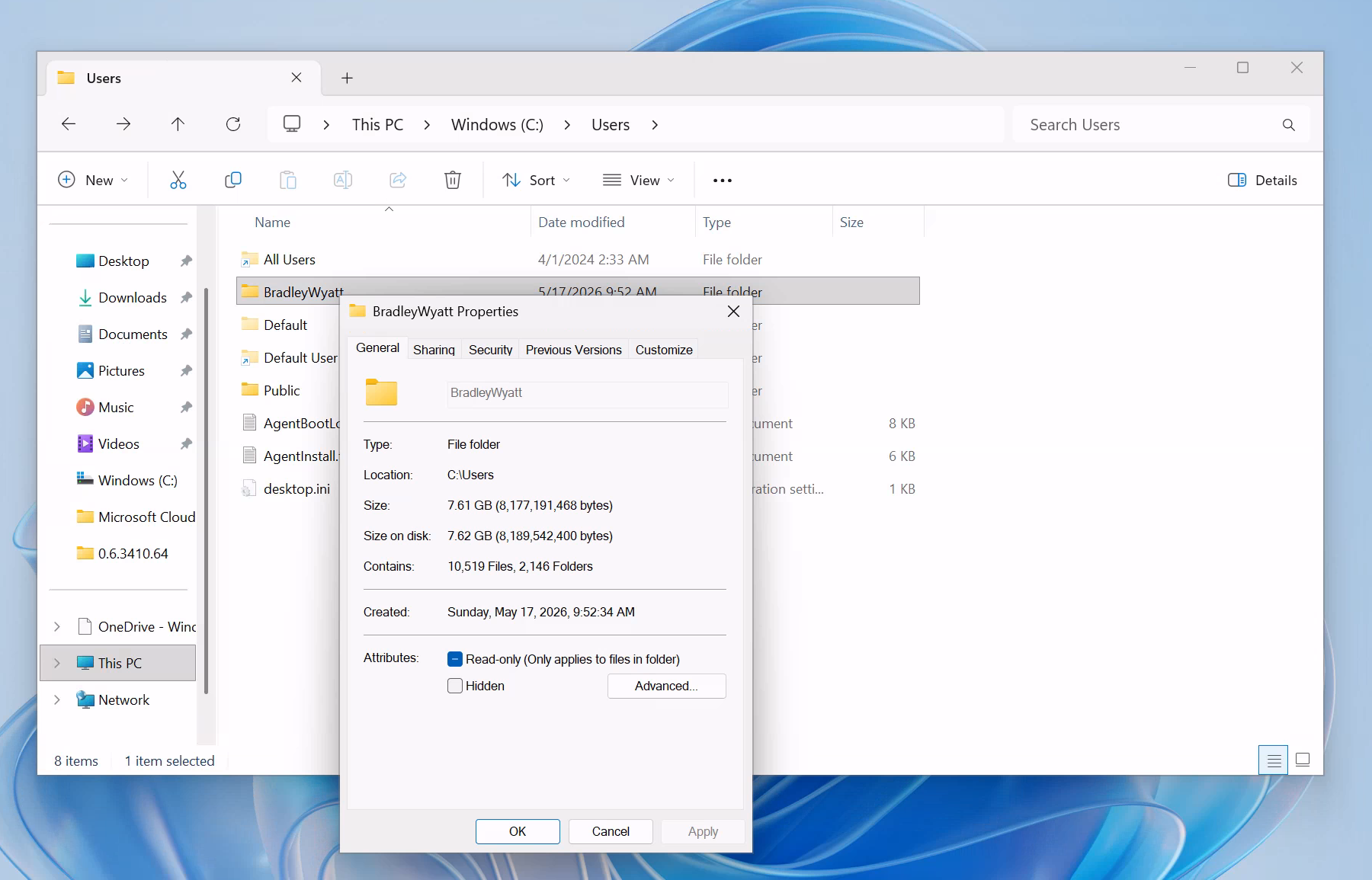
When you sign into a shared Flex Cloud PC and open your user profile at C:\Users\%username%, everything looks like it lives on the C: drive. But if you download a large file, or drag a big file onto your Desktop, you’ll notice the free/used space on C: doesn’t budge.
Open Computer Management → Disk Management and the culprit is right there: a second disk with no drive letter and the label Cloud Profile - %username%. Assign it a drive letter and browse it, and you’ll find your entire user profile sitting on it, alongside what appears to be agent-managed metadata (a record of which Cloud PCs the disk has previously attached to, size information, and a copy of the user’s AppX packages).
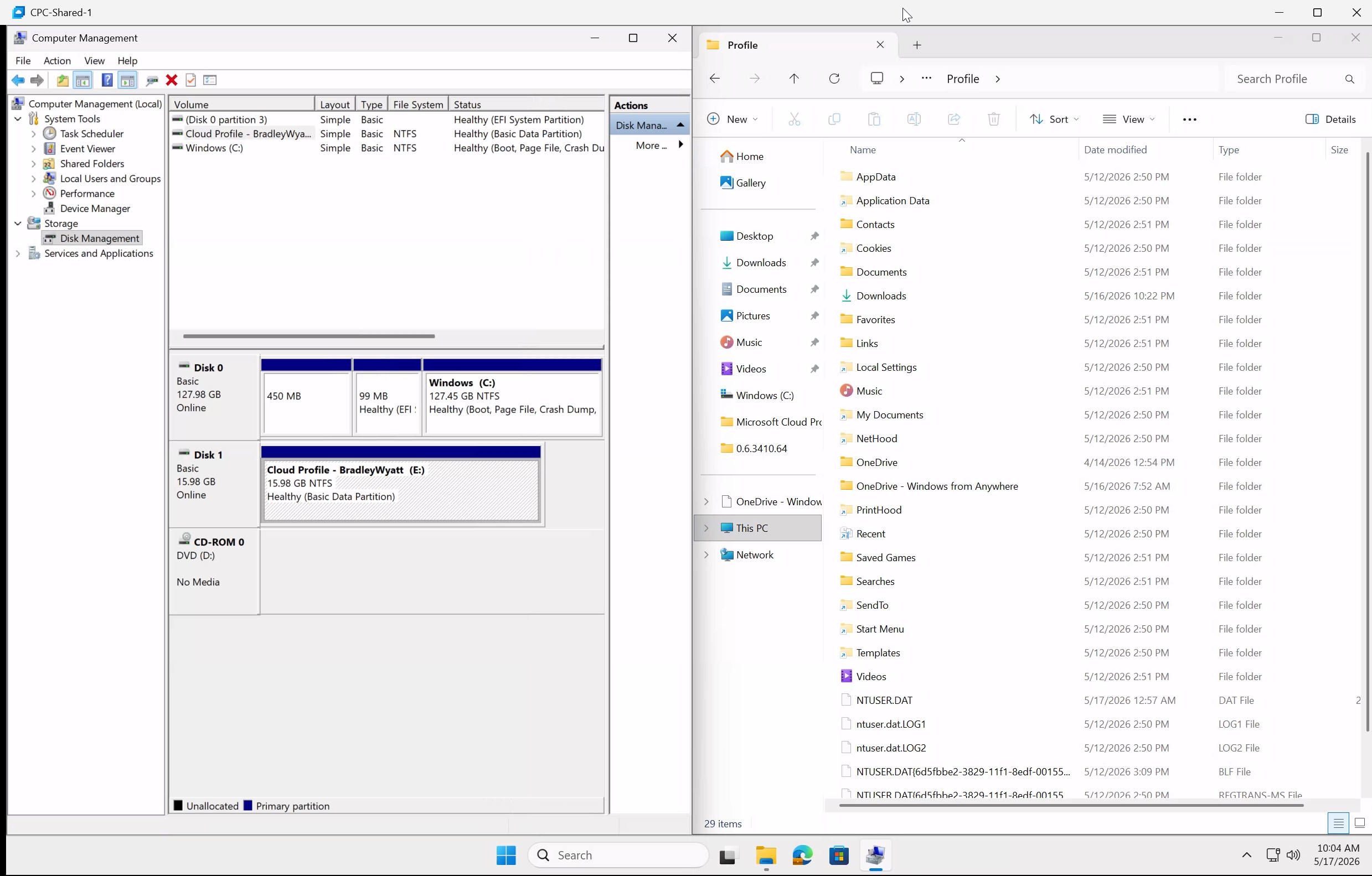
So our entire user profile actually lives on a separate disk that gets attached to the Cloud PC at sign-in, and the path under C:\Users\ is just a redirection target. But what is performing the redirection?
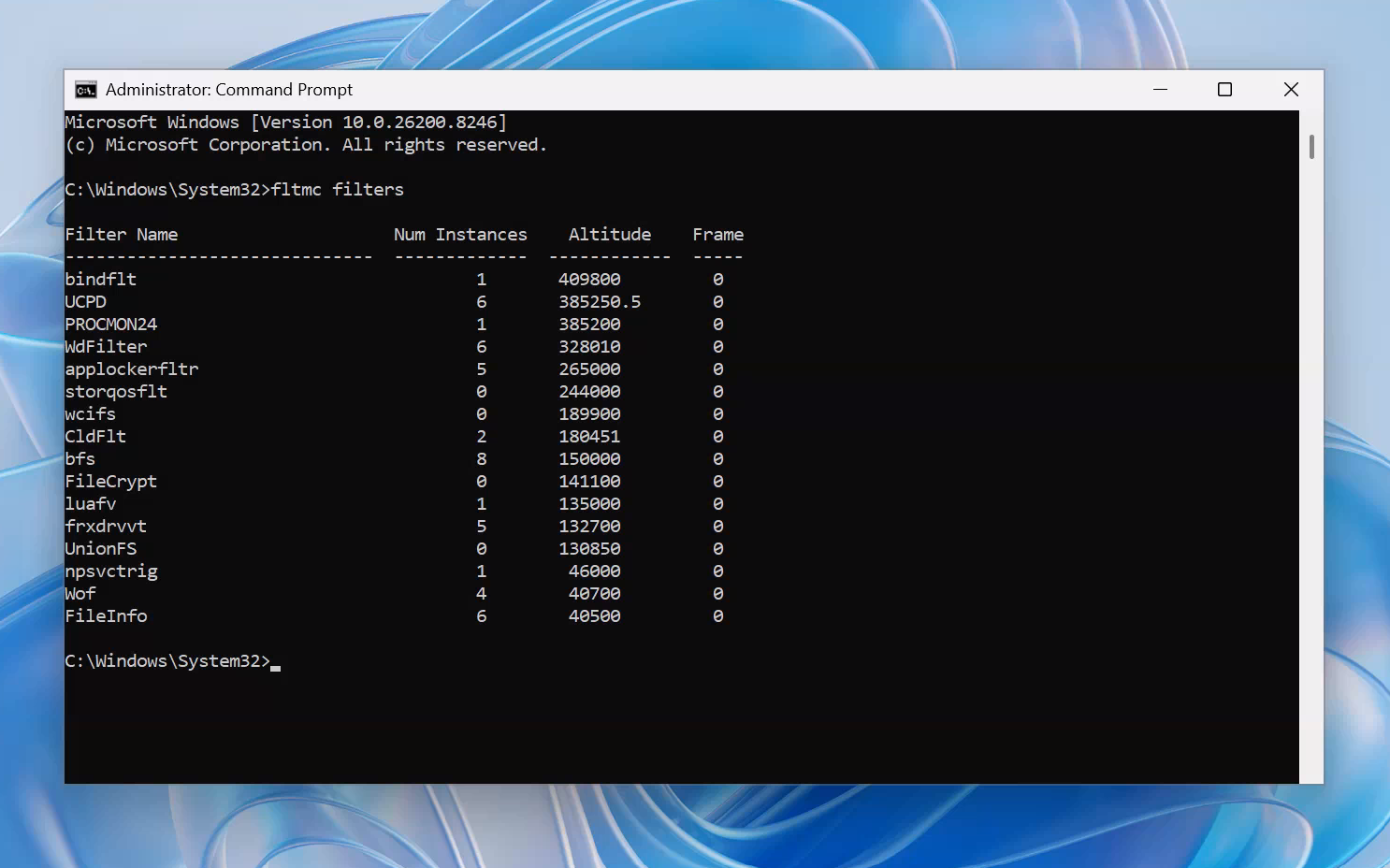
Launch an elevated command prompt and run fltmc filters, which lists the file-system filter drivers currently loaded on the system. fltmc (Filter Manager Control) is the user-mode utility that talks to the Windows Filter Manager, the subsystem that hosts drivers sitting between applications and the file system. One filter immediately stands out: frxdrvvt. This is a kernel-mode minifilter driver published by Microsoft as part of FSLogix.
We can use the Windows Service Control utility (sc.exe) to query the configuration of the frxdrvvt driver service:
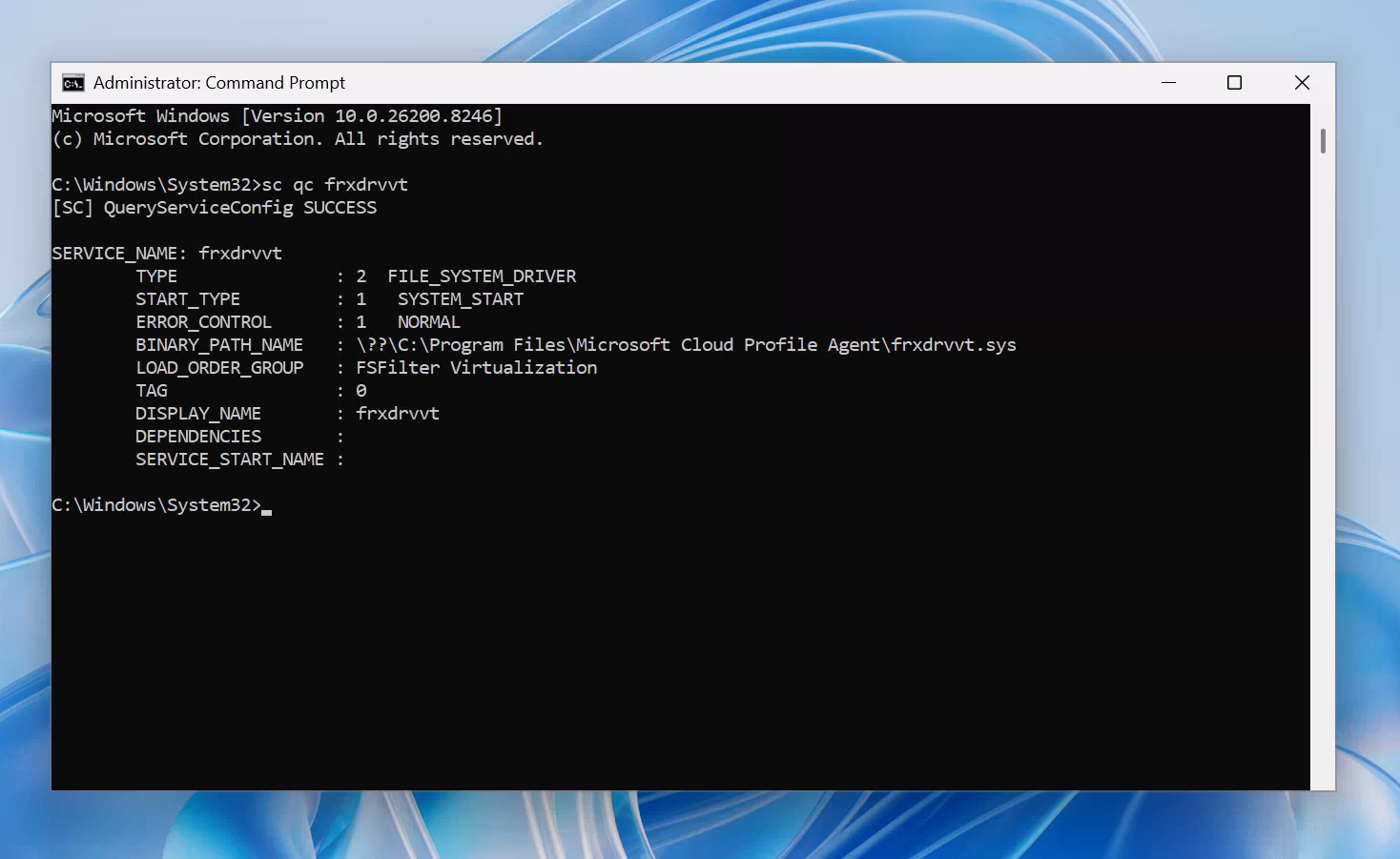
So now we have a better idea of what’s happening behind the scenes and where our profile is actually living. Let’s take a deeper look, because this isn’t the FSLogix we’re familiar with. It’s a custom variant built for Microsoft’s cloud-first offering.
What’s Installed on a Flex Shared Cloud PC#
The Microsoft Cloud Profile Agent#
Located at C:\Program Files\Microsoft Cloud Profile Agent\ the directory contains three (3) files.
| File | Role |
|---|---|
cldprof.exe | In-VM Windows service used by Cloud Profiles to manage user profiles. Runs as cldprof.exe --service under LocalSystem. Internal namespace Microsoft.CloudProfiles.ServiceLib. |
frxdrvvt.sys | FSLogix Redirection Filter Driver. Kernel-mode minifilter that performs file-system redirection from C:\Users\<user> to the attached managed-disk volume. |
appsettings.json | Per-VM configuration. |
Looking at the appsettings.json file we can see that the service is attaching the Azure Managed Disk for the UES on LUN 60 as well as my Cloud Device Id and region. I tried looking into the Microsoft Graph (MSGraph) documentation to see if there was an endpoint for Cloud profile managed disk devices but could not find anything.
{
  "AzureManagedDiskLunAssignment": {
    "Default": 60
  },
  "SessionConfiguration": {
    "WaitForAttachTimeout": 40000
  },
  "DeviceMetadata": {
    "Environment": "prod",
    "CloudDeviceId": "device:global:75778722-00ce-4db6-bce8-65cd4dfce85d:b6ca47f7-487b-460b-8472-d70637f20c29",
    "CollectionId": null,
    "Region": "centralus"
  }
}
What Each Key Tells Us#
| Key | Meaning |
|---|---|
AzureManagedDiskLunAssignment.Default = 60 | Per-user storage is an Azure Managed Disk, not a VHDX file in object storage. The agent hot-attaches the disk to the VM at SCSI LUN 60 at sign-in. |
SessionConfiguration.WaitForAttachTimeout = 40000 | 40-second timeout for the disk to be attached and appear in Windows. If the disk hasn’t arrived in 40 s, the user gets the ’temporary profile’ warning. |
DeviceMetadata.Environment = prod | CDP environment selector. |
DeviceMetadata.CloudDeviceId | CDP device identifier. Used by CloudDeviceAgent.CloudProfile.exe to identify the Cloud PC to the W365 control plane. |
DeviceMetadata.Region | The Azure region in which the per-user managed disks are allocated. Matches the provisioning policy’s region. |
DeviceMetadata.CollectionId | Currently null. |
Runtime Evidence: cldprof.exe Interactive Launch#
If we attempt to run cldprof.exe we can see the following debug messages:
dbug: Microsoft.Extensions.Hosting.Internal.Host[1]
      Hosting starting
dbug: Microsoft.CloudProfiles.ServiceLib.Notifications.ServiceNotification[0]
      ServiceNotification.Subscribe: '4dd372c6-1009-41bd-bab5-0a0d03987ab5'
dbug: Microsoft.CloudProfiles.ServiceLib.Notifications.ServiceNotification[0]
      ServiceNotification.Subscribe: '49f2d40d-bcf4-4803-8a98-6324a1bc30a3'
info: Microsoft.CloudProfiles.ServiceLib.DriverCommunication.FrxdrvvtCommunication[0]
      Execute: 'ConnectToFrxdrvvtPortOnServiceStart'
crit: Microsoft.CloudProfiles.ServiceLib.DriverCommunication.FrxdrvvtCommunication[0]
      IDriverCommunication.VerifyConnectToDriver: ConnectToFrxdrvvtCommunicationPort failed
      with exception Failed to open port connection to Frxdrvvt (ACCESS_DENIED) (Hresult: 80070005)
        Microsoft.CloudProfiles.UtilityLib.Errors.ConnectToFrxdrvvtAccessDeniedException:
        at Microsoft.CloudProfiles.UtilityLib.NativeMethods.FltLib.ConnectToFrxdrvvtCommunicationPort(...)
        at Microsoft.CloudProfiles.ServiceLib.DriverCommunication.FrxdrvvtCommunication.ConnectToFrxdrvvtCommunicationPort()
This shows that the service is using the standard Windows Filter Manager communication-port IPC mechanism to communicate with the FSLogix minifilter driver (frxdrvvt.sys). This is the same IPC pattern used by classic FSLogix components.
The Microsoft CloudDeviceAgent#
Located at C:\Program Files\Microsoft CloudDeviceAgent\ the directory contains four (4) directories.
- 0.6.3410.64 - (appears to be a version number)
- CloudProfile
- DvcInvCollector
- management
There are several files and folders nested in each, I won’t go through each one. I will mention that when you run CloudDeviceAgent.exe it does several things:
- The
PackageManagerinitializes 3 plugins: CloudProfile, management, DvcInvCollector - Calls
NetGetAadJoinInformationto retrieve the tenant ID - It appears to attempt to download your Cloud Profile using the file
CloudDeviceAgent.CloudProfile.exeatC:\Program Files\Microsoft CloudDeviceAgent\CloudProfile\0.1.3410.54
The Microsoft CloudDeviceAgentManager#
Located at C:\Program Files\Microsoft CloudDeviceAgentManager\ the directory contains a single directory which appears to be named after a version (0.1.3410.63) and inside that directory are three (3) files:
- appsettings.Development.json
- appsettings.json
- CloudDeviceAgentManager.exe
I was unable to parse the two json files due to NTFS permissions.
Sign-in Flow (What We Can Verify)#
- User authenticates to the Cloud PC.
- The Cloud Profile Agent connects to
frxdrvvt.sysvia the filter manager communication port (FilterConnectCommunicationPort), confirmed by theMicrosoft.CloudProfiles.ServiceLib.DriverCommunication.FrxdrvvtCommunicationclass observed in runtime stack traces. - The agent coordinates with
CloudDeviceAgent.CloudProfile.exe, which is bound to Microsoft’s Connected Devices Platform (CdpEnvironment=prod,DeviceId=…,Region=centralusfrom its command line andappsettings.json). - The user’s per-user Azure Managed Disk is attached to the Cloud PC VM at SCSI LUN 60, as specified by
AzureManagedDiskLunAssignment.Default: 60inappsettings.json. On a user’s first ever sign-in to the policy, the disk is created and then attached. - Once the disk is present,
frxdrvvt.sys(the FSLogix Redirection Filter Driver) redirects all I/O underC:\Users\%username%to the new volume. Microsoft’s FSLogix documentation describes this redirection model: “a known location likeC:\Users\%username%, and all its contents are pointed to the mounted container.” - Winlogon loads the user profile against the redirected path. To the user and to applications, it looks like an ordinary local profile.
- If the attach does not complete within 40 seconds (
SessionConfiguration.WaitForAttachTimeout: 40000), the user is signed in with a temporary profile and shown the documented warning.
sequenceDiagram
    autonumber
    actor User
    participant Winlogon
    participant cldprof as cldprof.exe
(Cloud Profile Agent)
    participant Broker as CloudDeviceAgent.
CloudProfile.exe
    participant CDP as Microsoft
Connected Devices Platform
    participant ARM as Azure Compute
    participant Disk as Per-user
Managed Disk
    participant Drv as frxdrvvt.sys
(Redirection Filter)

    User->>Winlogon: Authenticate
    cldprof->>Drv: FilterConnectCommunicationPort
    Note right of Drv: FrxdrvvtCommunication
class confirms this
    cldprof->>Broker: Coordinate disk request
    Broker->>CDP: CdpEnvironment=prod
DeviceId, Region=centralus
    CDP->>ARM: Attach per-user disk
    ARM->>Disk: Attach at LUN 60
    Note right of Disk: AzureManagedDiskLunAssignment
Default = 60
    Disk-->>cldprof: Disk-arrival event
    cldprof->>Drv: Begin redirection of
C:\Users\%username%
    Drv-->>Winlogon: Path redirected
    Winlogon->>User: Profile loaded
(looks local)

    Note over cldprof,ARM: If attach > 40 s
(WaitForAttachTimeout: 40000)
→ temporary profile + warning
Sign-out Flow (Inferred From the Sign-in Mechanics)#
- User signs out; session-termination event fires.
cldprof.exetellsfrxdrvvt.systo stop redirection and flush.- Broker requests Azure Compute to detach the managed disk from the VM.
- The disk persists in the W365-managed Azure subscription until the next sign-in (anywhere in the policy’s Cloud PC pool).
sequenceDiagram
    autonumber
    actor User
    participant Winlogon
    participant cldprof as cldprof.exe
(Cloud Profile Agent)
    participant Broker as CloudDeviceAgent.
CloudProfile.exe
    participant Drv as frxdrvvt.sys
(Redirection Filter)
    participant ARM as Azure Compute
    participant Disk as Per-user
Managed Disk

    User->>Winlogon: Sign out
    Winlogon-->>cldprof: Session-termination event
    cldprof->>Drv: Stop redirection + flush
    cldprof->>Broker: Release disk
    Broker->>ARM: Detach managed disk
    ARM->>Disk: Detach from LUN 60
    Disk-->>Disk: Persists in W365-managed
Azure subscription
    Note over Disk: Re-attaches on next sign-in
to any Cloud PC in the pool

    Note over cldprof,Disk: No profile cleanup needed
The data left with the disk.
Only non-roamable AppData
caches remain on the OS disk.
One thing you may notice in the sign-out flow is there is no profile cleanup process. This is because the profile never actually lived on the OS disk. The OS disk’s C:\Users\%username% was never the real storage location, it was a redirection target.
Sign-out is just a detach disk call. The agent tells Azure Compute to release LUN 60, Windows fires a disk-removal event, frxdrvvt.sys tears down the redirection, and the user’s data physically leaves the VM with the disk. No Remove-Item, no scrubbing, no temp-profile cleanup task. The disk floats back to Microsoft’s storage subscription and gets re-attached to the Flex Shared Cloud PC the next time the user signs in.
The only things left behind on the OS disk are the explicitly excluded paths: non-roamable UWP caches (AppData\Local\Packages\*\AC, LocalCache, TempState, SystemAppData) and identity caches (TokenBroker, OneAuth, IdentityCache, the AAD broker, CloudExperienceHost). These are device-bound by design, keyed under the user’s SID, and harmless when the next user signs in. They don’t match and Windows recreates them. Storage Sense and the Flex Shared snapshot-based reset mop them up over time.
What About Custom Images?#
The next question I had is how does the UES “tools” get into custom images if you choose to go that route instead of using a gallery image? I won’t go through the steps on making a custom image (build, configure, sysprep, upload and verify) but I will share several things I did to figure out where the tools are injected into the image. (TLDR: during provision)
The Hard Rule#
From Device images overview — Image requirements:
The image:
- Supported versions of Windows 10 or Windows 11 Enterprise.
- Generation 2 images.
- Single Session VM images (multi-session isn’t supported).
- No recovery partition.
- Default 64-GB OS disk size.
- Data disks can’t be attached to the VM prior to capturing the image.
- Cannot contain FSLogix components.
- Cannot contain more than 3,000 apps in the Start menu.
- The image must never have been Active Directory, Microsoft Entra ID joined, Intune-enrolled, or enrolled for co-management.
- Generalized VM image.
Microsoft owns the lifecycle of frxdrvvt.sys on shared Cloud PCs. If you pre-install FSLogix yourself, image validation will reject the image, and even if it didn’t, version and altitude collisions with the agent-installed driver would produce undefined behavior.
The Actual Injection Mechanism#
W365’s Automated provisioning steps lists the high-level pipeline but is intentionally vague about agent injection. Live evidence from a running Cloud PC fills in the gaps:
First I created a new Intune PowerShell script that would read the folder names in C:\Program Files and save it to a txt file at the root of C:\. I configured it to run as SYSTEM so I can ensure it gets invoked prior to the user logging into the Cloud PC.
Get-ChildItem -Path 'C:\Program Files' -Directory | Select-Object -ExpandProperty Name | Out-File -FilePath 'C:\program-files-folders.txt' -Encoding UTF8After signing into the device I can see that the file is already there: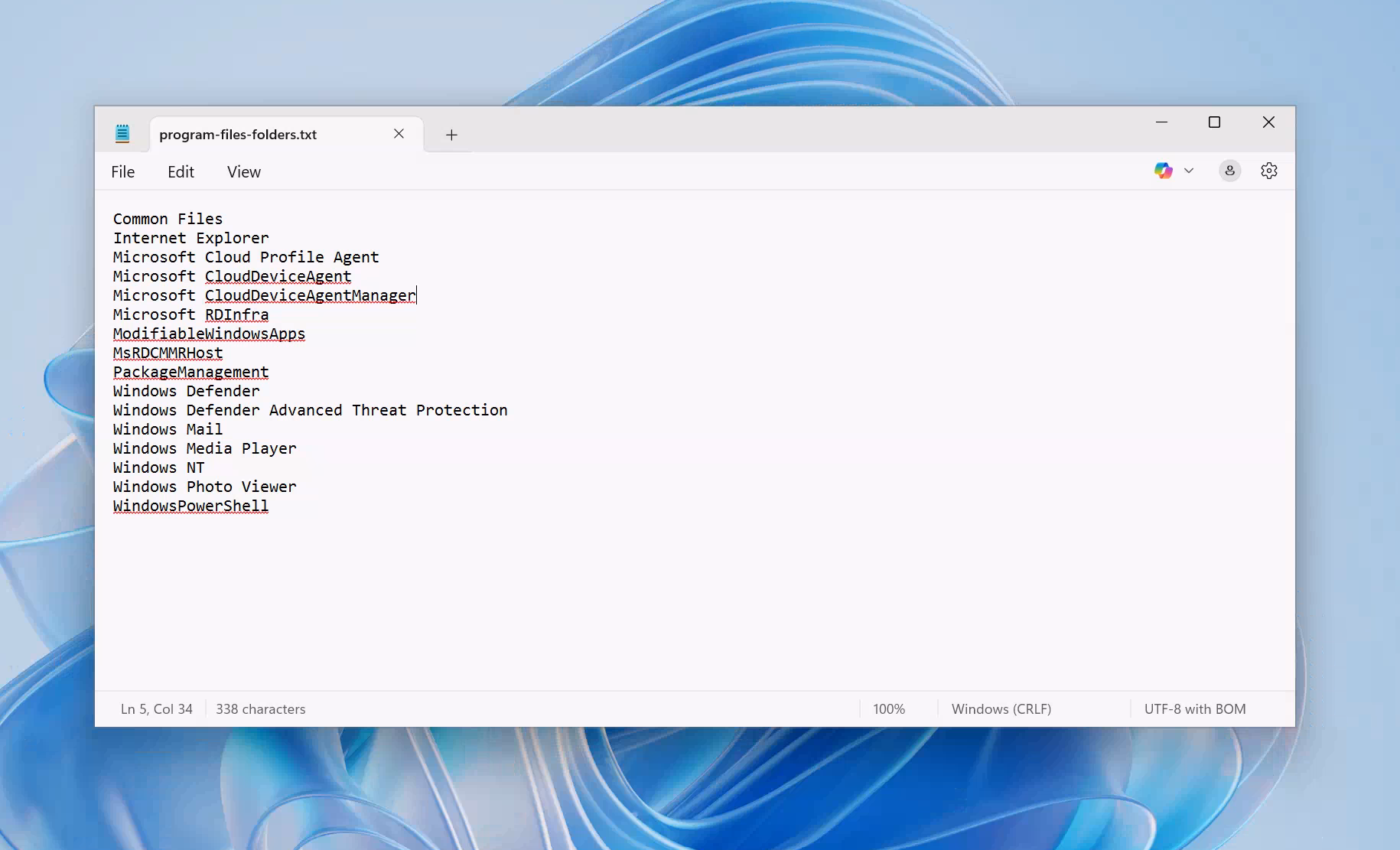
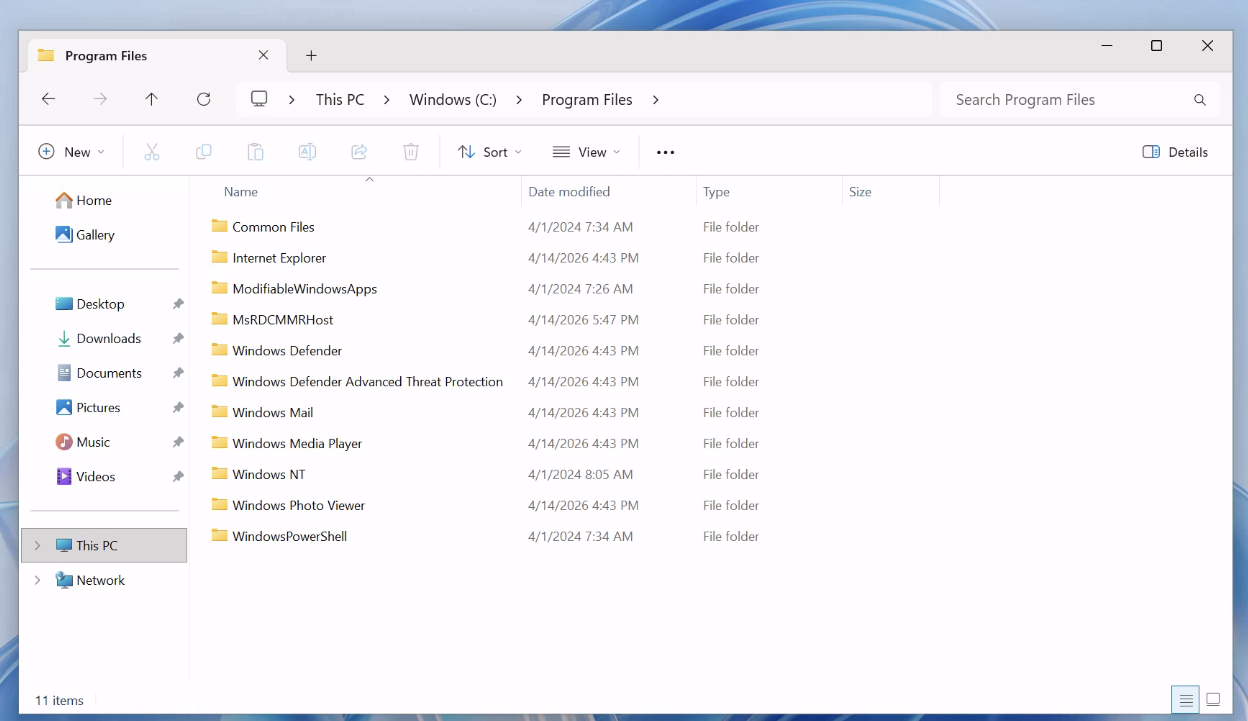
And just to be 100% sure, I created an Enterprise Windows 365 Cloud PC with the same exact image and the folders were not present.
Comparison: UES (Cloud Profile Agent) vs. Classic FSLogix#
| Aspect | Classic FSLogix Profile Container | UES / Cloud Profile Agent |
|---|---|---|
| Storage back end | Customer-owned SMB share (Azure Files, ANF, Windows file server) | Microsoft-managed Azure Managed Disk hot-attached at SCSI LUN 60 |
| Storage format | VHD/VHDX file inside the share | GPT-partitioned NTFS volume directly on the attached managed disk (volume label: Cloud Profile - <username>, no VHDX wrapper) |
| Attach mechanism | frxccd.sys mounts the VHDX over SMB | Hot-attach to the Cloud PC VM at SCSI LUN 60 (observed in \\?\scsi#disk&ven_msft&prod_virtual_disk#…&00003c#…) |
| Drivers installed | frxdrv.sys + frxdrvvt.sys + frxccd.sys | frxdrvvt.sys only |
| Services | frxsvc.exe (Profile), frxccds.exe (Cloud Cache) | cldprof.exe --service + broker CloudDeviceAgent.CloudProfile.exe |
| Configuration | Registry: HKLM\SOFTWARE\FSLogix\Profiles\* + redirections.xml | appsettings.json (per-VM, agent-managed) |
| Customer can edit exclusions | Yes (redirections.xml) | No, hard-coded exclusion list |
| Available on | AVD, RDS, Citrix, any Windows multi-session | W365 Flex Shared and W365 Cloud Apps only |
| Lifecycle owner | Customer (install, patch, configure FSLogix) | Microsoft |
Security with Cloud Profile Disks#
Windows 365 uses Microsoft-managed keys (MMK) to encrypt individual user storage instead of BitLocker or other encryption products. Because of this, User Experience Sync does not support policies that affect write access to fixed or removable drives.
If policies prevent or modify access permissions to user storage, the drive still attaches. However, when the user signs in, Windows creates a temporary profile.
Ensure that the following policies are not applied to your Windows 365 Cloud PCs.
| Policy | Setting |
|---|---|
| Windows Component\BitLocker Drive Encryption\Fixed Data Drives | Deny write access to fixed data drives not protected by BitLocker |
| Windows Component\BitLocker Drive Encryption\Removable Data Drives | Deny write access to removable drives not protected by BitLocker |
Conclusion#
In conclusion, UES is a Microsoft-managed, cloud-native profile system that reuses the FSLogix Redirection Filter Driver (frxdrvvt.sys) but replaces the rest of the FSLogix stack with a from-scratch Microsoft service (Microsoft.CloudProfiles), backed by per-user Azure Managed Disks hot-attached to the Cloud PC VM at SCSI LUN 60. With this new feature, IT admins no longer need to deploy, manage, or configure the traditional FSLogix stack for shared Cloud PCs.
Sources#
- User Experience Sync for Windows 365 Flex in Shared mode
- FSLogix Services, drivers, and other components
- Troubleshoot User Experience Sync for Windows 365 Flex in shared mode
- Snapshot-based reset for Windows 365 Flex in Shared mode (Preview)
- LUN Objects
- Automated provisioning steps
- Device images overview — Image requirements
- Policies prevent access to individual user storage