
Objective#
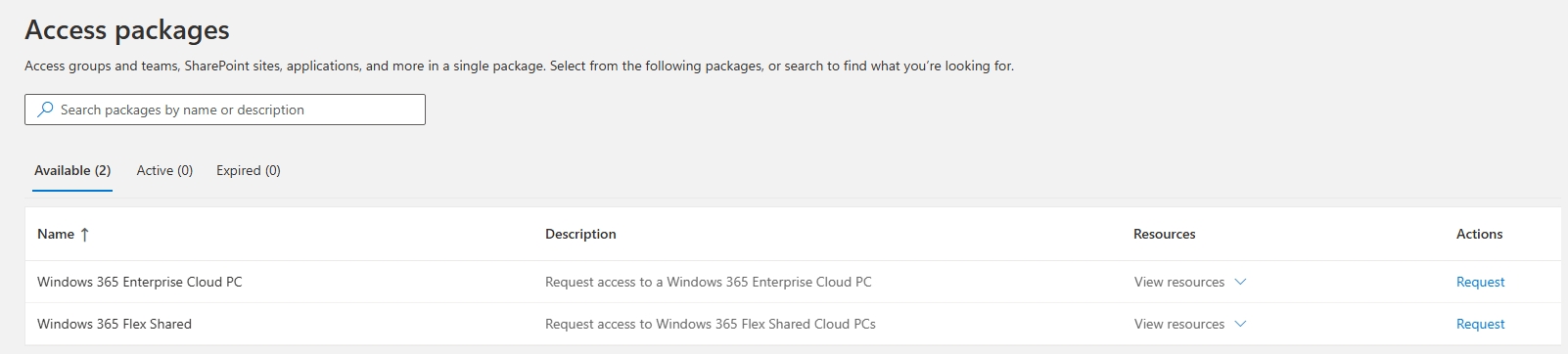
Requesting a new Cloud PC shouldn’t require a help desk ticket. With Entra Access Packages, users can request the Windows 365 Cloud PC they need directly from a self-service catalog, get routed to their manager for approval, and have licensing and provisioning handled automatically behind the scenes. In this article I will walk through setting up access packages for both Windows 365 Enterprise Cloud PCs and Windows 365 Frontline Flex Shared Cloud PCs.
Gotchas#
- While users will get instant access to an Enterprise Cloud PC, they will need to wait until it’s finished provisioning before they can connect. Consider setting up an automation that will automatically email users when their Cloud PC has been provisioned and is ready to be connected to.
- Flex Shared Cloud PCs don’t need this wait since the pool is already provisioned. Flex Dedicated Cloud PCs behave like Enterprise and still require provisioning time on first request.
Configuration#
Enterprise Cloud PCs#
Enterprise Cloud PCs are licensed on a per-user basis. This means our access package needs to both license the user and add them to the provisioning policy.
Group Based Licensing#
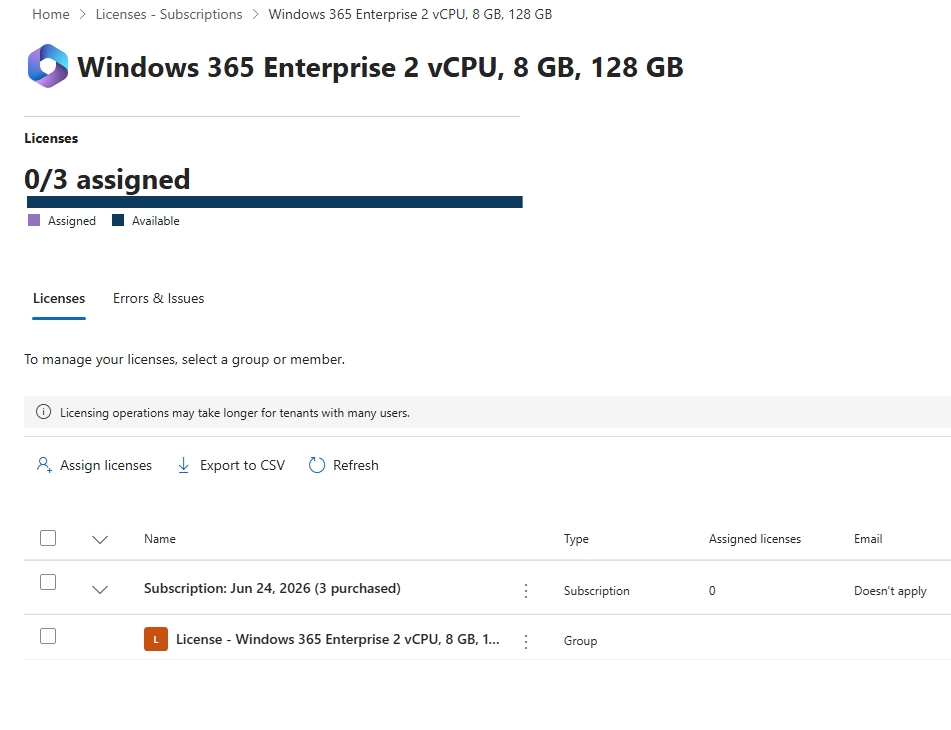
First, I am going to create an Entra group in the Azure Portal that will handle licensing my users. In my tenant I have licenses for Windows 365 Enterprise 2 vCPU, 8 GB, 128 GB Cloud PCs, so I created a Security Group called ‘License - Windows 365 Enterprise 2 vCPU, 8 GB, 128 GB’. In the M365 Admin Center I assign the licenses to my newly created Entra group.
You do not need separate groups for licensing and provisioning policy assignment. The same group can be used for both.
Provisioning Group#
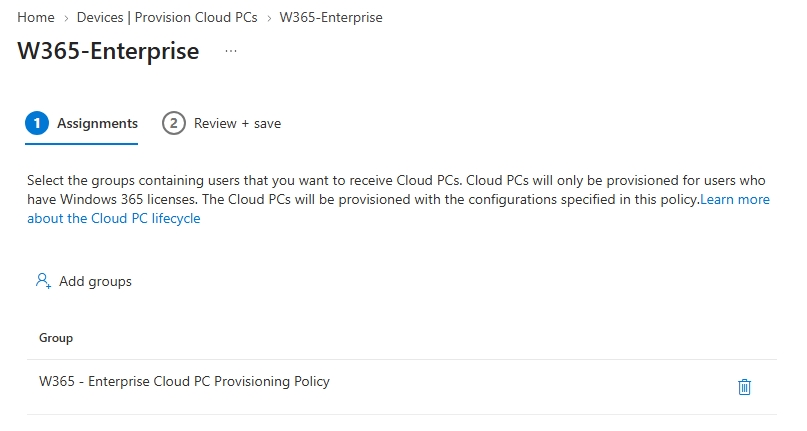
Once I have completed the group based licensing, I need to create a group and assign it to my provisioning policy. In my tenant I created a Security Group called ‘W365 - Enterprise Cloud PC Provisioning Policy’, and in the Intune portal, under Provision Cloud PCs, I assign my newly created group to the proper provisioning policy. Users that are members of this group will automatically have an Enterprise Cloud PC provisioned for them as long as they have the proper license.
Entra Access Package#
Next, going to the Entra Portal we can create a new access package using the new access package blade.
Give your package a name and select the catalog.
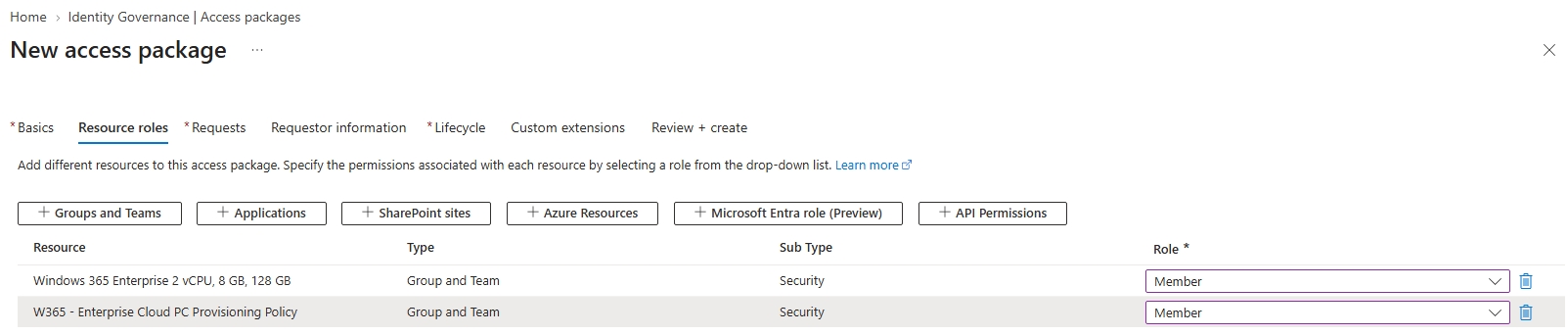
In the “Resource roles” pane, select “Groups and Teams” and add your licensing group and your provisioning group.
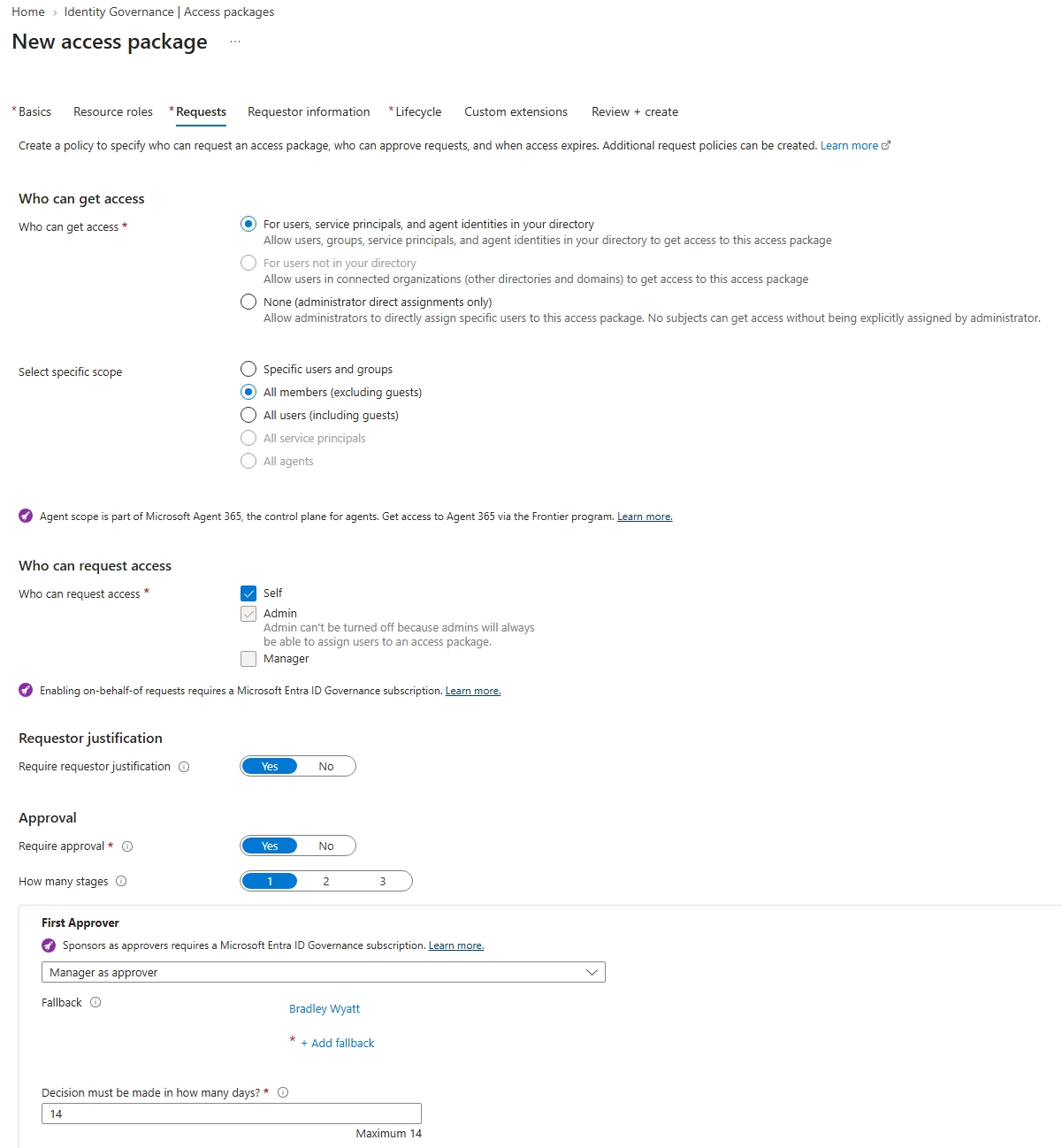
In the “Requests” pane, configure the access requirements that best fit your organization. In my example, all users can request a Cloud PC, but it requires justification and approval from their manager.
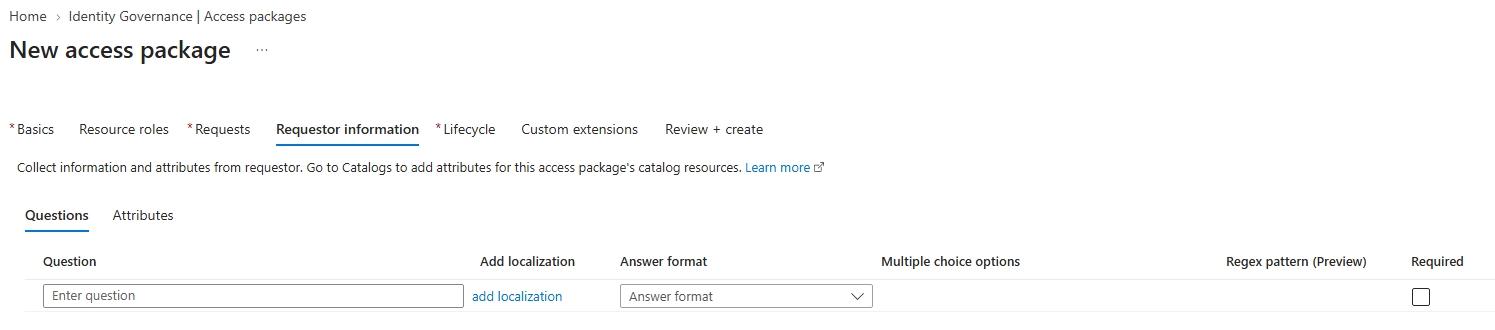
Next, in the “Requestor information” pane, you can configure questions to ask the requestor to help base your decision on.
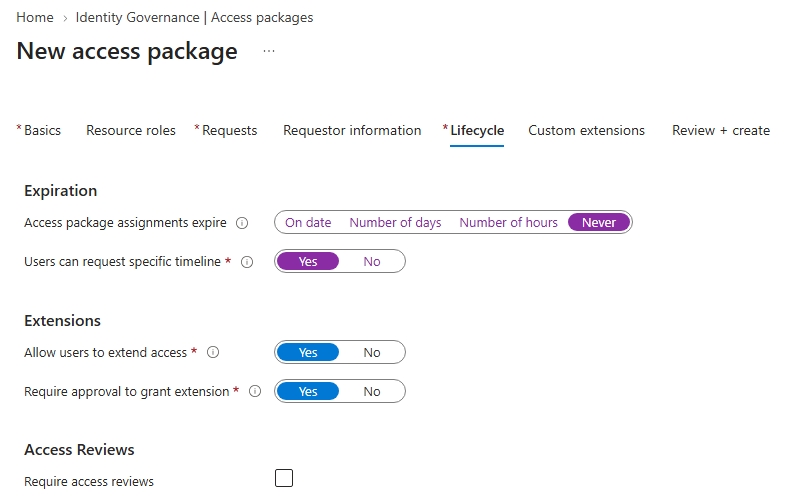
In the “Lifecycle” pane, you can configure package expiration and whether users can request extensions. In my tenant we automatically remove Cloud PCs based on usage, so if a user isn’t using theirs it gets auto-removed. There’s no need to set up lifecycle rules here in my use case.
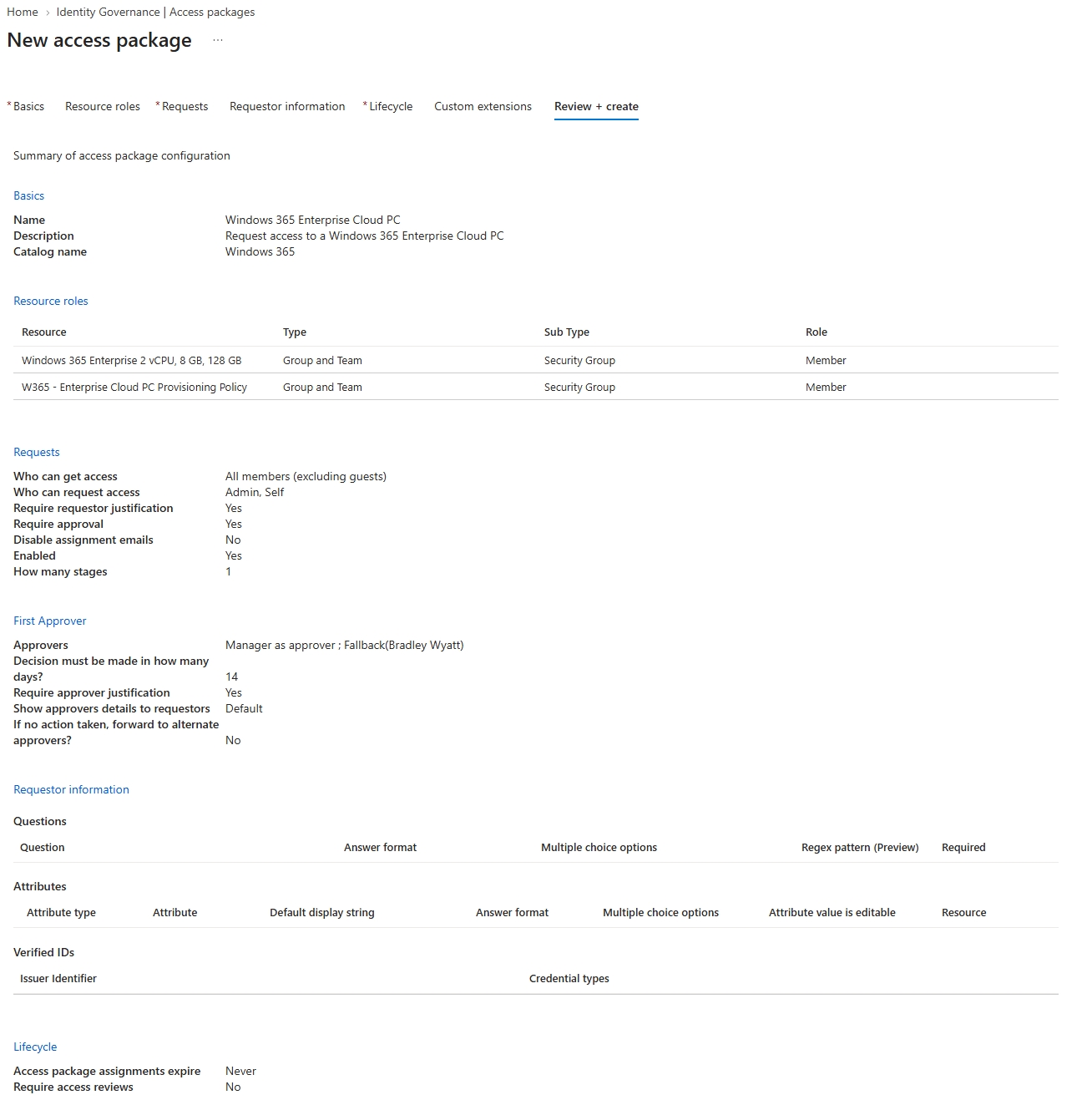
Finally, in the “Review + Create” pane, review your access package configuration and click “Create”.
Flex Shared Cloud PCs#
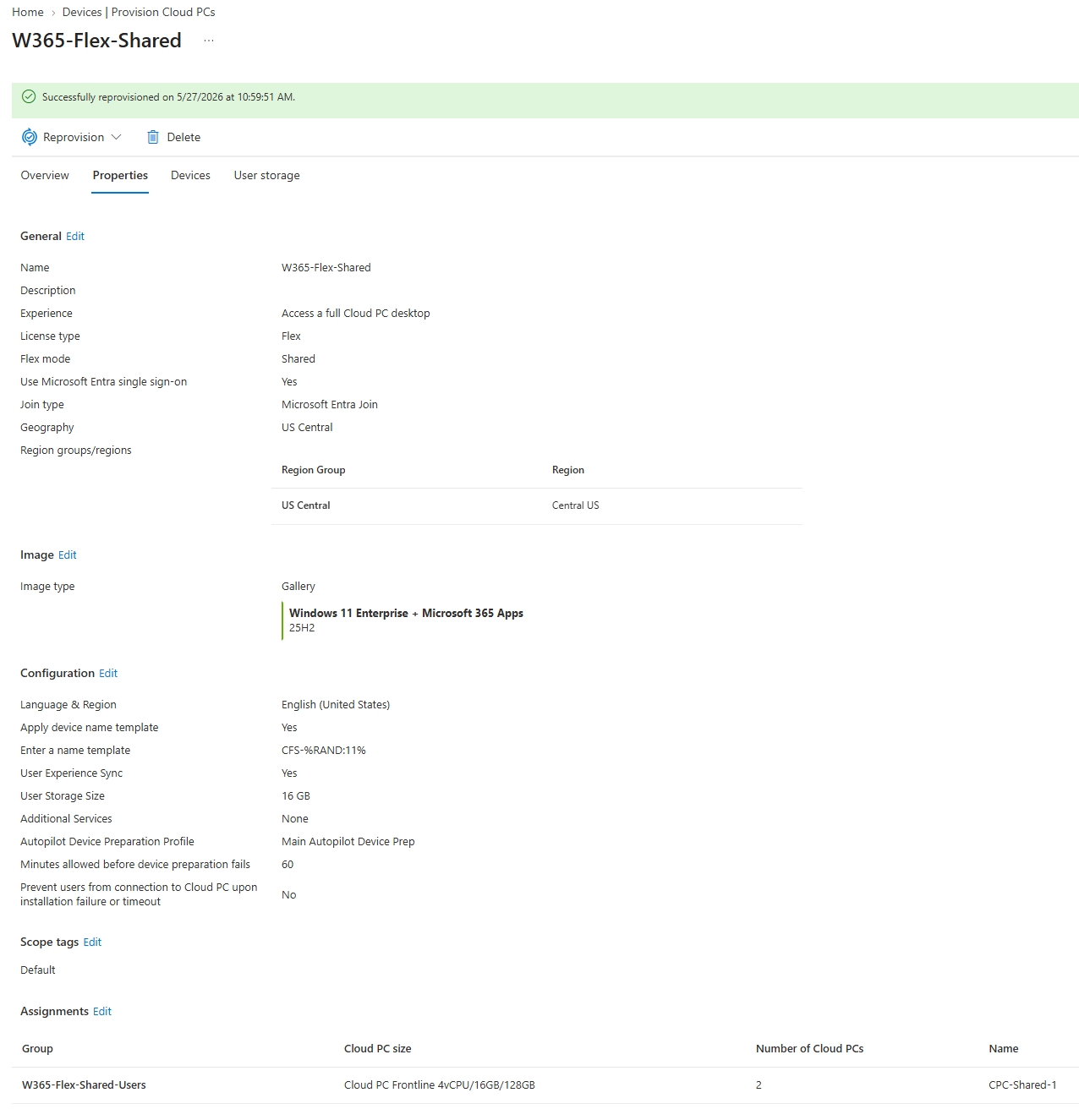
Flex Cloud PCs are shared with a group of users. Flex Dedicated gives you up to 3 Cloud PCs per license while only 1 can be active at a time, and Flex Shared gives you 1 Cloud PC shared across multiple users, still allowing only 1 active at a time. With Flex Shared, you can have multiple Cloud PCs in a single provisioning policy, so as long as there is an available Cloud PC it will allow a user to connect, though to the user it looks like a single Cloud PC. In this example I have a Flex Shared provisioning policy with 2 Cloud PCs in the available pool. I am going to build an access package that users can request access to for this pool of Cloud PCs. Unlike Enterprise, Flex licensing is not handled on a per-user basis and is instead handled at the tenant level. So we do not need to create a licensing group, we only need to grant the user access to the group tied to the provisioning policy.
Provisioning Group#
In the Intune Portal, for my provisioning policy for my Flex Shared, I have it assigned to an Entra Security group called “W365-Flex-Shared-Users”. Users in this group will automatically get access to the pool of Cloud PCs that are provisioned.
Entra Access Package#
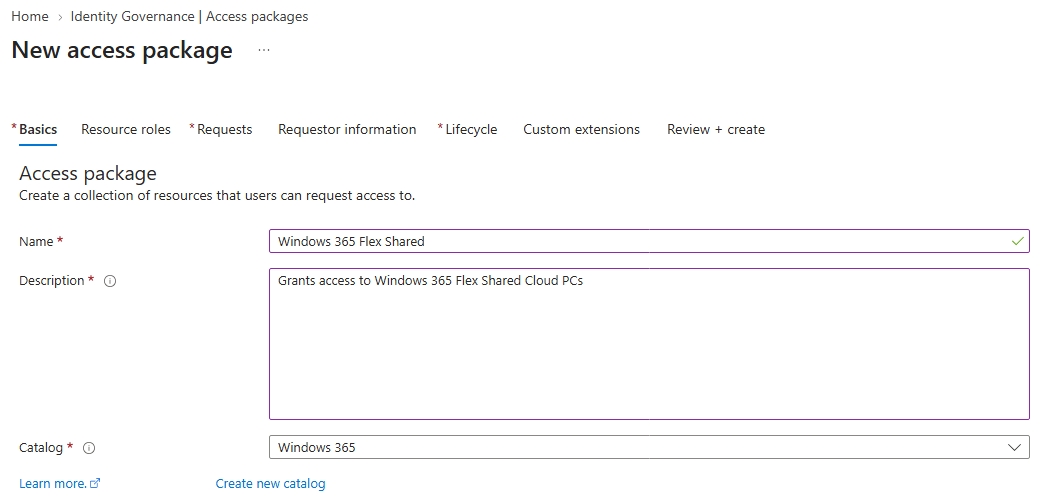
Next, going to the Entra Portal we can create a new Access Package using the new access package blade.
Give your package a name and select the catalog.
In the “Resource roles” pane, select “Groups and Teams” and add your provisioning group, in my case the “W365-Flex-Shared-Users” group.

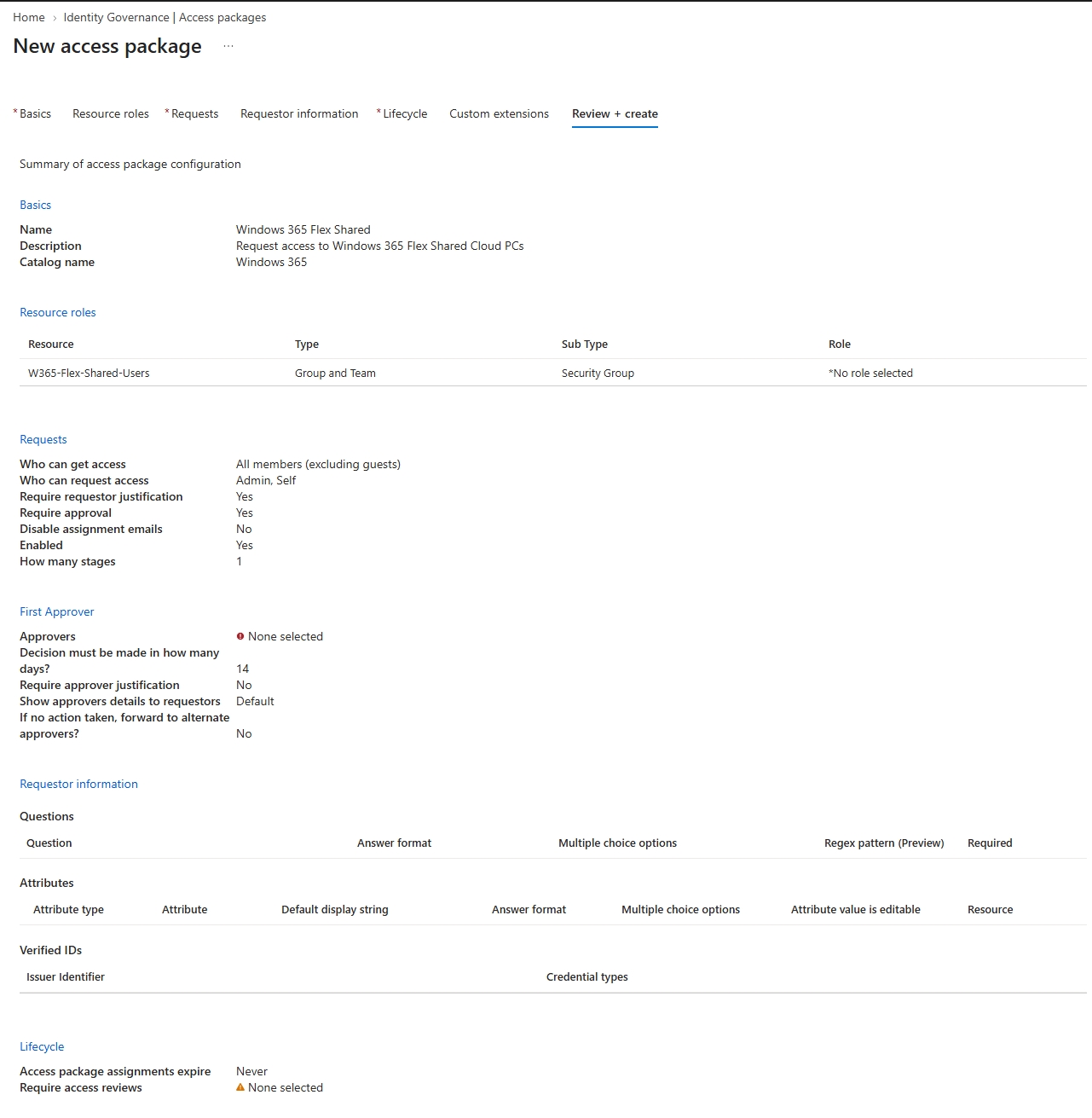
In the “Requests” pane, configure the access requirements that best fit your organization. In my example, all users can request a Cloud PC, but it requires justification and approval from their manager.
Next, in the “Requestor information” pane, you can configure questions to ask the requestor to help base your decision on.
In the “Lifecycle” pane, you can configure package expiration and whether users can request extensions. In my tenant we automatically remove Cloud PCs based on usage, so if a user isn’t using theirs it gets auto-removed. There’s no need to set up lifecycle rules here in my use case.
Finally, in the “Review + Create” pane, review your access package configuration and then click “Create”.
Requesting Access#
Users can request access by going to myaccess.microsoft.com or aka.ms/myaccess, which will bring them to the “My Access” overview page. From there they can browse available access packages and request access to different resources.
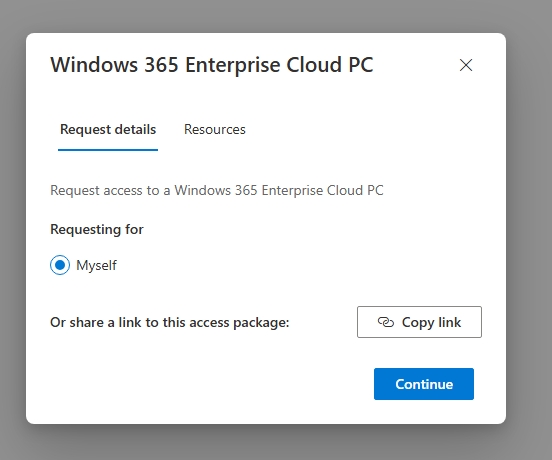
Here I am requesting access to an Enterprise Cloud PC. It shows me the description of the access package, the resources I will get access to, and I can even share a link to it.
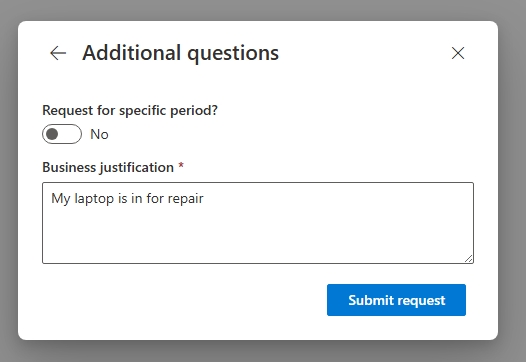
Next, I can request it for just a certain period of time, after which it will remove me from the group(s), and I am required to enter my business justification.
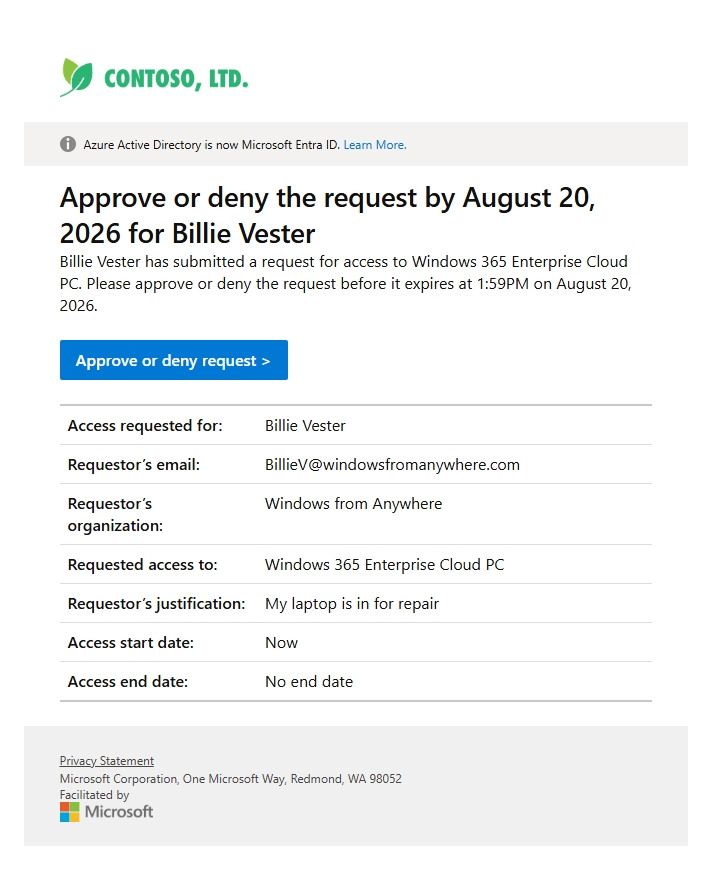
Switching to the manager’s view, I can see that they immediately get an email regarding the request and are given the option to approve or deny it.
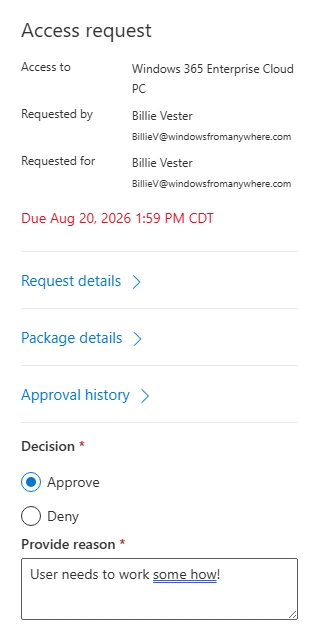
When approving, because I enabled “require approver justification” the manager is also required to provide justification.
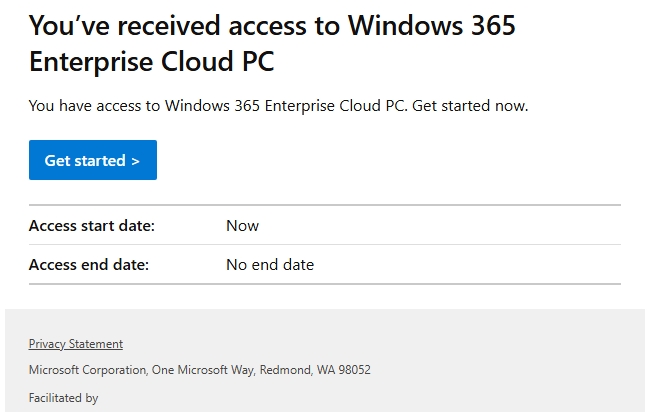
Once approved, the end user gets an email letting them know they have been approved for a Windows 365 Cloud PC.
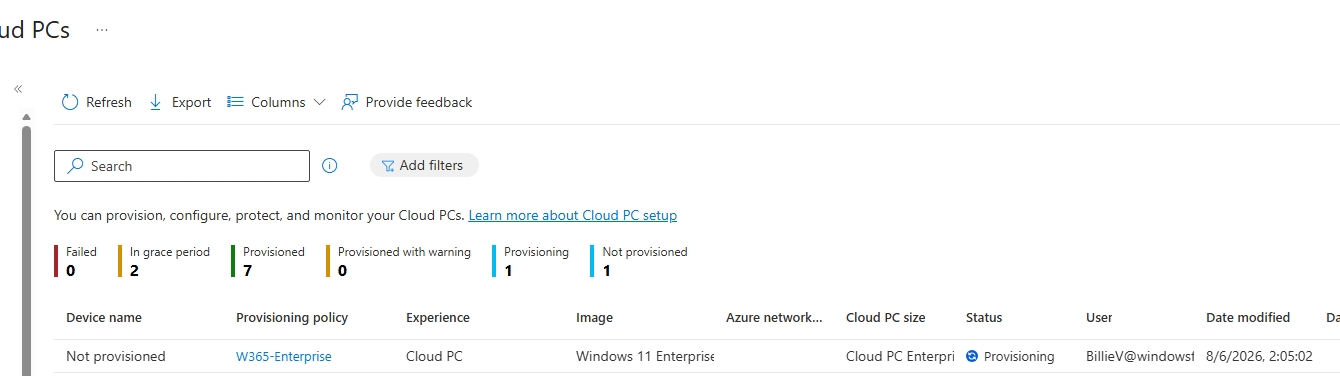
Jumping to the Intune Portal and going to All Cloud PCs, I can see that my user is automatically licensed and added to the provisioning group, which kicks off provisioning of their new Enterprise Cloud PC. Luckily, we already have an automation that will automatically email users when their Cloud PC has been provisioned and is ready to be connected to.
If users are getting access to Flex Shared Cloud PCs, we don’t need to wait for provisioning because those Cloud PCs already exist in the pool, we are just granting access. If it was Flex Dedicated, we would need to wait.
Wrapping Up#
Entra Access Packages turn Windows 365 provisioning into a self-service request rather than a ticket sitting in IT’s queue. Users request the Cloud PC they need, managers approve with a click, and the licensing and provisioning groups do the rest automatically. Whether you’re handing out per-user Enterprise Cloud PCs or a shared pool of Flex Shared Cloud PCs, the pattern is the same: license (if needed), assign to the provisioning group, and let Access Packages handle the request and approval workflow. Pair this with the auto-provisioning welcome email and users get a smooth, hands-off experience from request to first login.